
Using the ClubRunner App
Helpful links, documents and tools
District 9675 – club-level resource
The ClubRunner app is designed to keep you connected with your Rotary club and district on the go — from member directories and events to attendance tracking and news. It’s especially useful when you’re away from your computer or just need quick access to Rotarian contact info.
Your steps
Download the app from your app store
Learn about the functions of the app.
Log into the App
Call and/or email a club member using the app
1. Download the app
- On iPhone / iPad: Search for ClubRunner in the App Store and install.
- On Android: Search for ClubRunner in Google Play and install.
- The app is completely free and designed to work with your club’s ClubRunner subscription.
2. Learn about the functions of the app
- View Member Information
- See your club’s member directory.
- Tap a member to get their contact info.
- Call, email, or message members directly from the app.
- Check Events & Meetings
- Browse upcoming club and district events.
- View meeting details like date, time, venue, and speakers.
- Read News-Stay updated with the latest club and district news posts.
- Receive Notifications
- Get push notifications for important updates, announcements, or reminders (if your club/district enables them).
- View Club & District Leadership
- Quickly find who’s in your club’s board and district leadership roles.
- Manage Your Profile
- View and edit your own contact details and profile photo.
- Why It’s Useful
- Fast access to essential club information when you’re out and about.
- Stay connected with members and events without logging into a desktop.
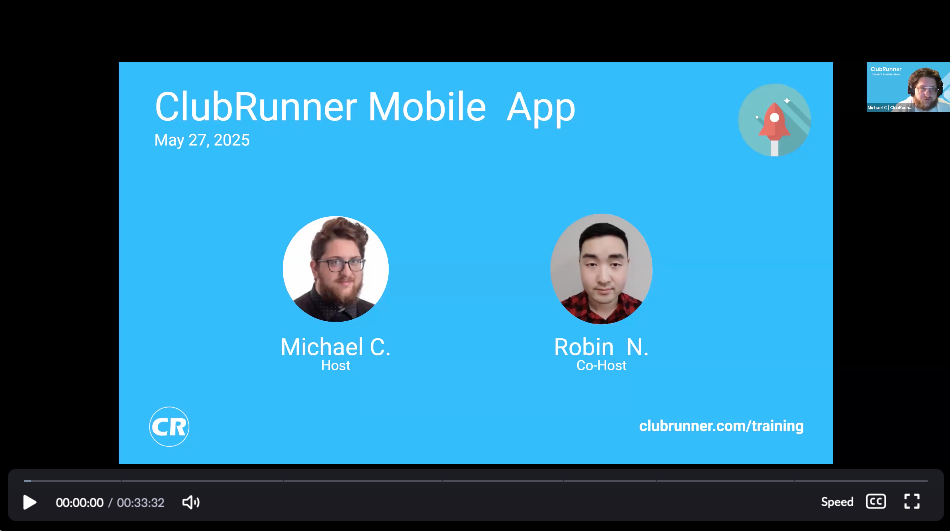
Watch a video on the function of the app
3. Log into the app
Use the same username and password you use for your club’s ClubRunner website.
Some clubs offer biometric login (fingerprint/face unlock) or passwordless links.
If you’ve forgotten your password:
- Tap Forgot Password
- Enter your email address
- Follow the reset link sent to your inbox
4. Call or email a club member using the app
- Go to the Member Directory
- Tap the Menu (☰) in the top corner.
- Select Members (or Member Directory depending on your club settings).
- You will now see a list of club members.
- To find a member
- Scroll through the list
- Or use the search bar at the top to type their name
- Tap on the member’s name to open their profile.
- Call the member
- On the member’s profile page, look for their phone number.
- Tap the phone icon next to the number.
- Your mobile phone will open the dial screen.
- Tap Call to connect.
- That’s it — you’re now calling directly from the app!
Helpful Tips
- If no phone number appears, the member may not have added one to their profile.
- Make sure your own contact details are up to date so others can reach you.
- You can also tap the email icon to send an email instantly.